
Label printer not showing on network? 5 checks before you call anyone
Your label printer is on, but your PC can't see it? Go through 5 steps you can check yourself before you call the technician. Read the checklist.
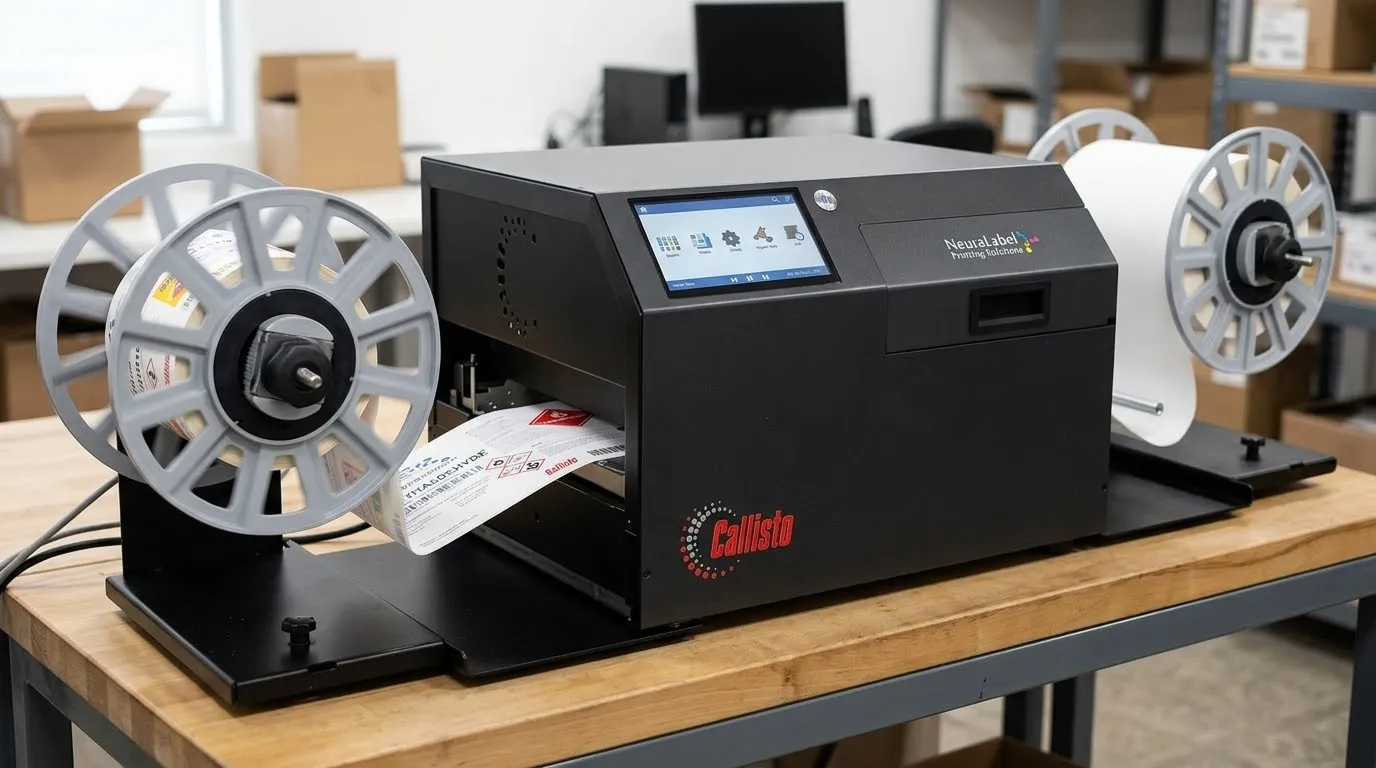
Your label printer is on, the screen says “Printer Ready”, and yet the PC acts as if the thing does not exist. A label printer not showing on the network is a classic. Below are five checks you can do yourself, in the same order we go through them on the phone: first the physical connection, then the network, and only then the PC. The steps are based on the NeuraLabel Callisto manual, but the logic applies to most network printers.
In chemicals and pharma, this is not a detail. A problem with the label printer can delay the labelling and further processing of a batch. The sooner you know whether the problem lies with the printer, the network or the PC, the sooner you are running again.
Check 1: is the network cable really plugged in?
Sounds obvious, but start here. At the back of the Callisto, the network cable must be firmly seated (the narrow side of the plug faces outwards). The other end must be in an active port on the switch or wall socket. After a move or a cleaning round, a cable can easily have worked loose.
Check 2: does the printer show a network address?
Look at the control panel. “Printer Ready” means the printer is ready to print, not that it is connected to the network. If you see no network address, the network connection may not be recognised properly, or something is wrong with the IP configuration. Sort that out before you change the settings on the PC.
Check 3: write down the IP address
Read the IP address from the control panel and write it down. Check that it fits within your company’s network configuration. Printer and PC are often in the same network range, but that is not always the case. If in doubt, ask IT for help. If the address changes regularly, ask for a static IP address or a reservation for the printer. Otherwise the port you set up on the PC may no longer work tomorrow.
Check 4: test the connection from the PC
Do this before you reinstall a driver. Type cmd in the Windows search bar, open the Command Prompt and type ping followed by the printer’s IP address.
- You get a reply: the printer responds over the network. Now check the driver, the printer port and the print queue.
- “Request timed out”: the printer does not respond to the ping. That can point to a network problem, but also to a firewall that blocks ping requests. Check the IP address and the connection, or ask IT for help.
So a ping tells you something about the network, not about printing itself.
Check 5: check the driver and the printer port
Install the Callisto driver and set up the connection through a Standard TCP/IP port with the IP address from check 3. The NeuraLabel installation document describes the steps. Want to know first whether the printer can print on its own? Then print a Print Quality Report from the touchscreen. If that works but printing from the PC does not, check the network connection, the driver, the printer port and the print queue.
Still not working?
Not sure what you are seeing? Aladin Code is happy to think it through with you. See also our pages on label printers, maintenance and service, ink and labels, the NeuraLabel Callisto and contact.
Sources: NeuraLabel, Installation Procedure: Driver and Network Setup and NeuraLabel Support Library.
Frequently asked questions
Why can't my PC see the label printer even though it is switched on?
Possible causes are a loose network cable, a missing or incorrect IP address, a firewall or a different network segment, a driver or port that is not set up correctly, or a problem with the print queue. The five checks above let you rule them out one by one.
How do I find the IP address of my NeuraLabel Callisto?
You read it from the printer's control panel.
What is a Standard TCP/IP port?
It is the way Windows talks directly to the device through the printer's IP address. You set it up during the driver installation.
What does it mean if the ping fails?
It means the printer does not reply to the ping test. That can point to a network problem, but also to a firewall that blocks ping requests. Check the cable and the IP address, then ask IT whether something is blocking the connection.
Do I need to open the printer to fix this?
Not for ordinary network problems. You check the cable, IP address, driver and port from the outside.
Can I print wirelessly with the Callisto?
Wi-Fi is not a standard feature but an optional extension: a Wi-Fi card that is fitted inside the printer. That is a separate job, so feel free to ask us about the options.
When should I call someone?
When the cable is in, the printer shows a network address, the IP address is correct, the driver and port are set up correctly, and it still does not work. Then we are glad to think it through with you, also outside a maintenance visit.